When a server goes down or when the response time of a database query exceeds the normal query execution time, any monitoring system in place should perform two actions. One to generate an alarm with relevant information (preferably the RCA - Root Cause Analysis) and secondly to log a ticket into a Service Desk solution. It may additionally execute an SMS action to notify the right technician.
With IT360, you can do that without any external interference. IT360 allows you to automate these actions thereby reducing time taken to troubleshoot the issue. In today's post, we will see how to create threshold, assign action and configure alarms so that the action is properly executed.Creating Thresholds
Thresholds are values on based on which the alarm is generated. For example, lets say the response time of an Apache server which acts as the web server for a website optimal response time is 1ms. When this value is breached or when the response time value goes higher, the website takes longer to load. Hence, it is critical to ensure that there is a threshold assigned to this web server and is carefully monitored.
In order to assign a threshold for this web server, follow the steps given below:
1. Click on 'Admin' -> 'Servers & Apps' -> 'Configure Alarms'.
2. Select the appropriate web server from the pull down menu 'Alarm Configuration by Monitors'. This will display the list of attributes for which you can assign thresholds for the particular web server.
3. Click on 'Associate' opposite to 'Response Time'. This will open a pop-up configuration window, wherein you can select the correct threshold corresponding to response time.
4. Click on 'Save' and 'Close' button to save and close the configuration window. You will now find that the response time for the Apache server is now configured and ready for associating an action.
Create Ticket Action
Now once the threshold is configured, click on 'Action' under 'Servers & Apps'. Click on 'Add New' under 'Log a Ticket' option.
1. Provide a proper name for the ticket.
2. Select the correct Category, Sub Category, Item, Priority, Group and Technician who will be responsible for this web server.
3. IT360 also allows you to insert relevant details into the Ticket content. This enables the technician to view relevant information. This allows the technician to troubleshoot the performance issue quickly.
4. Click on 'Log a Ticket' button to complete the process.
Additionally, you can also execute this action manually by clicking on this
icon. You can also update ticket's content, change category, sub category, etc by clicking on the edit
icon.
Assign Ticket Action
Once the ticket action is created, click on 'Configure Alarms'. Click on the attribute for which you would like the ticket action to be associated with (in our case, the Apache Server's response time). Click on the 'Response Time - Cr > 1500ms'. In the configuration pop-up window, select the check box labeled 'Configure actions at Attribute level'.
Select the appropriate action that needs to be associated with this threshold value. You can create actions and enable them in such a way that you can get alerted when there is an issue, or when the issue clears or when the issue is going to get critical. Once you have chosen the action and clicked the 'Save' & 'Close' button, the configuration is done. The next time when the response time threshold value is breached, the technician is automatically notified. A ticket is logged into the Service Desk solution. In addition to this, you can also associate an SMS action to this threshold thus ensuring the technician receives the information as soon as the incident occurs.
Similarly, you can create an ad-hoc action by clicking on 'New Action' link inside the configuration pop-up window. It will allow you to create the following actions as displayed in the screenshot below.
In continuation to my previous post about report generation in IT360, I will be talking about how to enable, schedule and generate reports for various IT resources/business services in this post.
IT360 provides a multitude of metrics for each IT resource that is being monitored. It also allows you to select a specific metric for each individual IT resource and generate report only for that metric. In this manner, IT360 eliminates the possibility of having the only data that you need, thereby reducing clutter in your report.
In order to generate such reports, click on 'Reports' tab and then click on 'Enable Reports' link. Under 'Custom Reports' you will find a list of metrics for various IT resource (monitor). Some of which are already selected by default. You can either choose these default metrics or select metrics which only you need.
In addition, you can also generate downtime summary report of these monitors by clicking on 'Downtime Summary Report' tab. Select the 'Time' at which the report should be generated along with proper email action.
To schedule reports for a business service or for a particular monitor, click on 'Schedule Reports' link under 'Reports' tab. Select a proper name and description for the report. Now select the appropriate report type from the pull-down menu (Availability, Health, Attribute, Alarm, Downtime, etc). Then select the 'Report Period' which allows you to select the period of data would you like to view in your report (Today's, Yesterday's, Last 7 days, Last 30 days etc).
Next we come to the crucial part of the process. You have two options: one to select 'Business Service' or two to select 'Monitor'. If you select Business Service, IT360 will provide you the list of various business services created, along with its sub-group. You can either select the entire business service as it is or select the business service sub-group alone.

Similarly, when you select the 'Monitor' option, IT360 provides the entire list of applications/servers/databases that are supported. You can select the monitor types for which you would like the reports to be generated.
Once you that is done, you can select whether this report should be generated daily/weekly/monthly. You can also select the specific time and month(s) should it be generated. These reports are available in PDF format.
The same applies for networks as well. Just click on 'Networks' tab under 'Reports' module. Select any report for which you want to schedule. Click on 'Schedule This'. Provide correct details for the scheduling the report and click 'OK' to schedule the report.
Now you have the reports with critical data, generated automatically and regularly without any intervention. You can also create multiple reports for various business services or monitor types as well. You can disable them at any time in case you want these reports to be generated.
Report generation is the one of the important task of all management tasks. This allows the IT Administrator analyze the trend of every IT resource over time and evaluate its performance. This analysis is useful for making calculated predictions and help take corrective actions.
Generating reports in ManageEngine IT360 is one of the easiest tasks. You have a centralized location from where you can generate a number of different types of reports. You can generate trend analysis report, availability report for the entire business service or for a particular monitor (IT resource). For example, this also allows you to generate Trend Analysis Report which enables you to track various trends of response times of WebLogic Server, view active JDBC connections, JVM Heap Current Size etc. You can also generate reports for ERP system metrics such as SAP or Oracle E-business suite such as Page In/Page Out rate, Spool Utilization, number of Enqueue Requests etc.
To generate these reports in ManageEngine IT360, log in to IT360 console and click on the 'Reports' module tab. In this tab ManageEngine IT360 allows you to generate report for either the business services (applications & servers) or for the network devices which are being monitored.


Today (Press Release) marks the general availability of ManageEngine IT360 (version 8.0), an integrated business service management which allows users to monitor their IT infrastructure with a business context. Since the Beta release in March, we have been receiving overwhelming response from our users and a great number of feedbacks. These feedbacks helped us design this BSM solution which caters to various end users needs.
ManageEngine IT360’s Business Dashboard interface displays the components that make up an organization’s network and the various business services those components support. Business Dashboards can be customized for specific job functions - from IT administrator up to CIO – with the level of detail displayed tailored for each role. Similarly network, application and traffic dashboards allow each user view information that are specific to their job functions enabling them to do their task effortlessly in addition to creating awareness of the impact it has on each business service.

Integrated with ITIL ready Service Desk which features automated trouble ticketing, complete with incident management, problem management, change management, a knowledge base, and more, ManageEngine IT360 reduces the complexity of workflows in production and making it easier for IT administrators to run effective operations.
In addition, support for Oracle E-business suite, VMWare device support, VoIP monitor support is also added. I will be also providing some in-depth details about each feature mentioned here. Feel free to check out some of the new screenshots of these features mentioned here.
So what are you waiting for still? Go ahead and download ManageEngine IT360 now. The pricing of ManageEngine IT360 starts at $4,995 per Year. For more information on various pricing packs, click here.
A Question can save your IT ... forever!
The chart above shows what Joe is seeing today. CRM Server availability is around 30% in a week.
The chart below tells Joe that the company is losing $242K per week because of the failure of CRM.
At ManageEngine we believe that if we empower Joe by giving him visibility into the Business Impact of an IT failure, Joe will be able to do different things to improve the efficiency of IT Operations. (Update : Thanks to Doug McClure who was the first person I came across with a clear understanding of the goal of BSM. ) And with ManageEngine IT360 you can get started with what is now known as "Common Sense BSM".
If you have a Joe in your organization you can empower them by downloading ManageEngine IT360. You can also see a live demo here.
Even after all this, Joe still needs to understand that when everything is working fine, nobody is going to call him and thank him. Welcome to IT, Joe :)

End-User Transaction monitoring for measuring response time of Business processes like Order Processing etc.
BSM Features
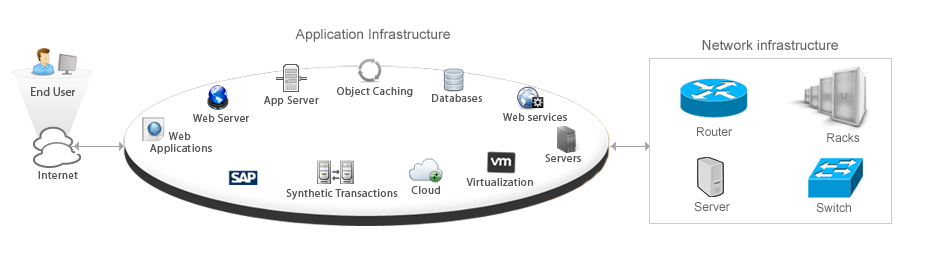
Business Service Container - The ability to map all of the infrastructure components above into the underlying Business Service

Application Dependency Mapping - IT360 allows you to visualize the relationships between the Business Service and the underlying IT Infrastructure
Business Level Metrics - IT360 offers the ability to extract IT specific metrics like Server downtime or Response time of an ecommerce application and translate it into Business level metrics like "$ of revenue lost" or "# of Orders processed per hour". This is the fundamental goal of BSM. ie. Enabling IT operation staff to see how a failure in IT affects the Business. With this visibility IT operations staff will be able to hopefully make different (and better) decisions regarding how they handle these IT failures.
IT360 can fetch Business metrics from a variety of data sources. With Support for "database query monitors", "custom script monitors", "JMX adaptors" and a variety of other monitors, information can be pulled from any data source as long as it is out there.
IT360 also includes an ITIL ServiceDesk to automate Incident, Problem and Change Management processes - again within the context of a Business Service.
There is nothing in the market today that packages all this functionality into one affordable, easy-to-use package. And IT360 allows you to evolve from managing the network to managing the business without requiring any major investments in software purchase or implementation times. And for once your IT operations team will not see it as management pushing some new jargon from the top.
Don't take my word for it. View the online demo or download the Beta
[/caption]
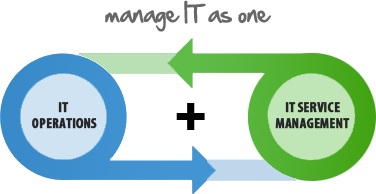
With the introduction of ManageEngine IT360, now every organization can afford business service management solution which caters to their needs and to the needs of their organization. ManageEngine IT360 IT Management Solution that helps IT Managers ensure high uptime for their mission critical Business Services.
ManageEngine IT360 adds a business perspective to monitoring IT Resources, helping users to understand the impact of downtimes on the business. The user gets to monitor the availability and performance of mission critical business applications, servers, monitor WAN and Traffic usage, and with in-built ITIL-ready service desk, ManageEngine IT360 allows the technology, processes and people to work smarter for businesses.
[caption id="attachment_111" align="aligncenter" width="269" caption="Business Service Management"]
[/caption]
With agentless methodology employed, monitoring of critical business applications becomes easier and painless. User can monitor end user experience of various applications, understand what is causing performance issues and take corrective actions quickly. This improves end user experience which in turn raises customer satisfaction which in turn increases ROI.
Key Business Benefits of using ManageEngine IT360:
Line of Business Managers: